Activate the AlphaLicenseBridge EA with your key and fix common errors
From buying a key to running the Bridge on MT5 in 5 minutes: get your key, install the Bridge, allow WebRequest, choose Indicators, renew, change machine, lock the key, and a fix table for every error code shown on the chart.
- 01
Quick overview: one key unlocks everything
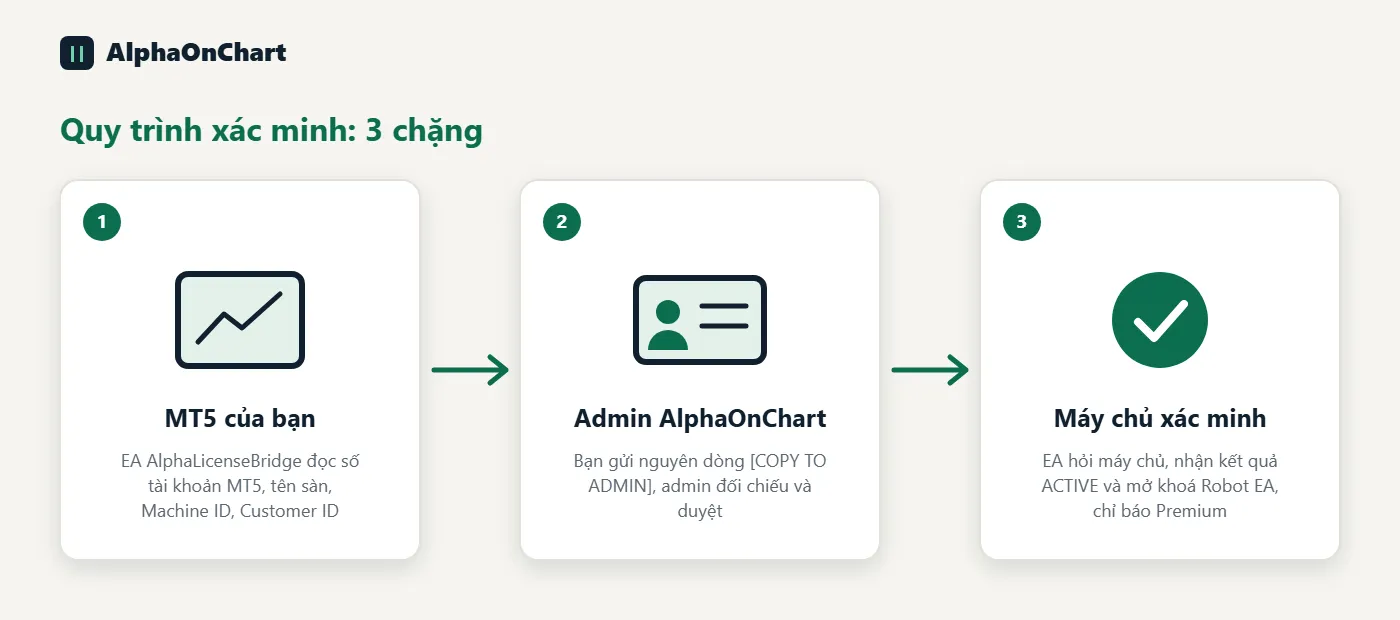
There are two ways to get a key: (1) an activation key issued automatically when your trading account qualifies (under the IB, KYC complete, trade made), shown in the “Trading Accounts” tab; (2) a plan key from a purchase, shown in the “Products & Keys” tab. Both use the same EA. You only need one key in the form AOC-XXXX-XXXX-XXXX-XXXX-XXXX-XXXX. Paste the key into the AlphaLicenseBridge EA once. The Bridge asks the AlphaOnChart server what you are allowed to use, then unlocks all Indicators, EA Plan and the Trading plan on that computer. You manage everything on the website (choose Indicators, renew, lock the key). The Bridge only follows; it decides nothing itself. The EA only sends to the server: the key, the MT5 account number, the device ID and the EA version. It never reads passwords and never trades.
- 02
Which plan unlocks what
VIP Channel: the VIP channel, EA Plan for MT5 and the Trading Plan. Unlimited Indicator choices each month. EA Plan Starter: EA Plan for MT5, up to 2 Indicators each month. EA Plan Pro Suite: EA Plan for MT5, up to 5 Indicators each month. EA Plan Ultimate: EA Plan for MT5 and the MTF Scanner, up to 10 Indicators each month. Daily Plan subscription: also unlocks EA Plan for MT5. Your Indicator allowance can also grow with last month’s total lots on your IB-verified accounts. The system always uses the higher of the lot-based allowance and the plan-based allowance.
- 03
Activation 1/6: Buy or receive your key
Open the member portal, go to Products and keys, choose a plan and pay with PayPal. The key is created as soon as payment succeeds and is tied to the MT5 account you pick. If you were granted free access, the key appears in the same place or the admin sends it to you.
 Open Products and keys →
 - 04
Activation 2/6: Save the key as soon as it appears
The full key is shown only once, right after payment. Copy it and store it somewhere safe (a password manager or a private note). Never share your key: anyone who has it can use it. If you lose the key, open Products and keys, click View key again and enter the confirmation code sent to your email. The system creates a new key and the old one stops working immediately.
- 05
Activation 3/6: Download and install the Bridge
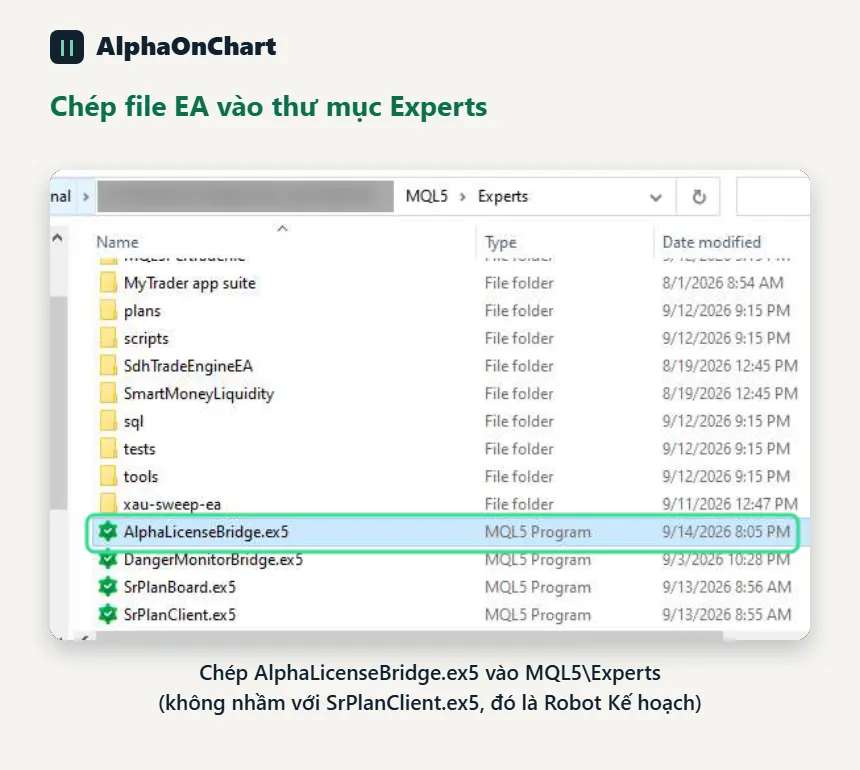
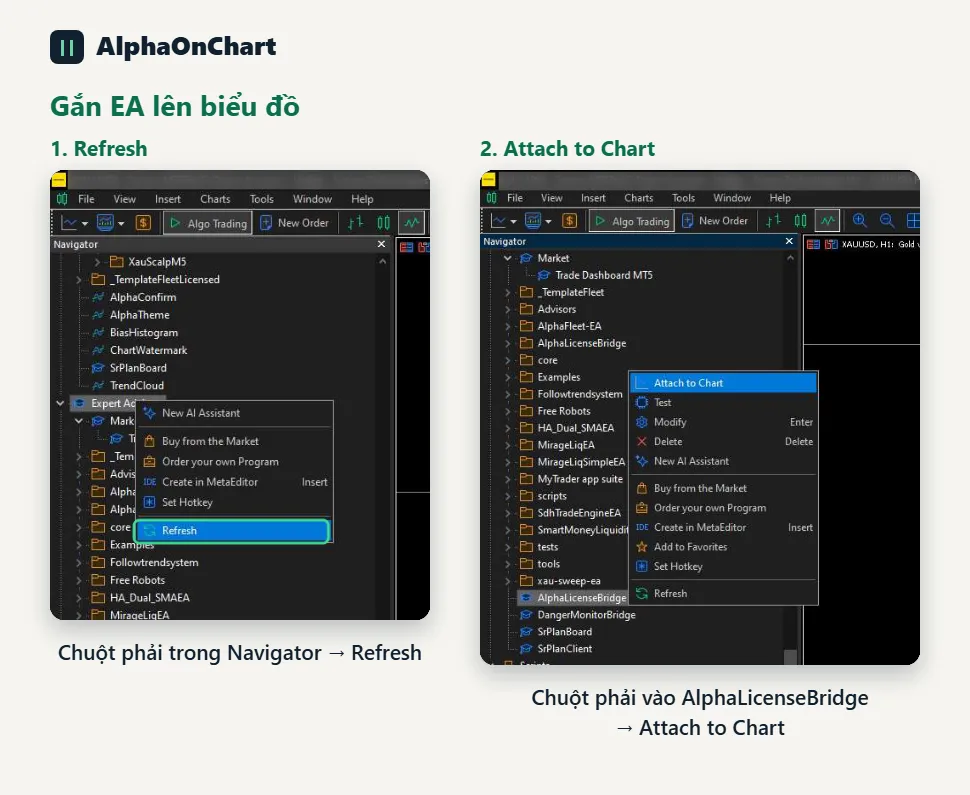
Download AlphaLicenseBridge.ex5 from the member portal, Downloads section. In MT5 choose File → Open Data Folder, open MQL5 → Experts and copy the file in. Then return to MT5, right-click in Navigator → Expert Advisors and choose Refresh. Note: the file name must be AlphaLicenseBridge.ex5; do not confuse it with SrPlanClient.ex5.
 Open Downloads →
 - 06
Activation 4/6: Allow WebRequest (the most commonly missed step)
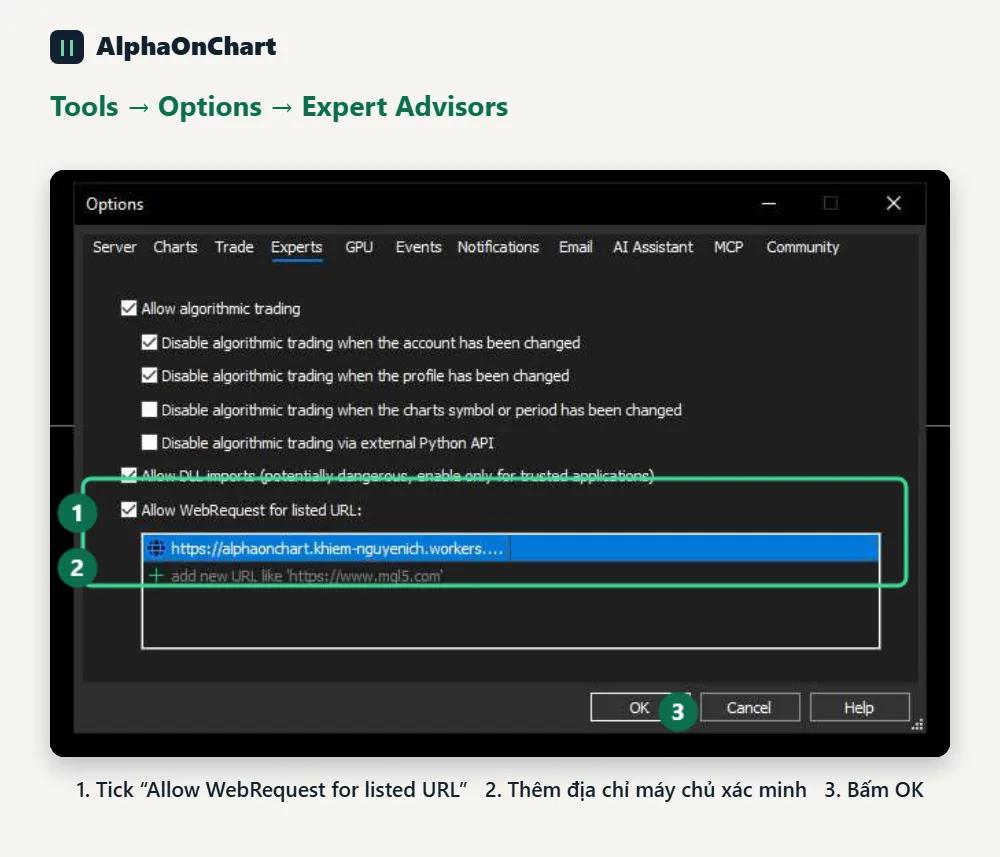
Choose Tools → Options → Expert Advisors tab: 1. Tick “Allow WebRequest for listed URL” 2. Click the + sign and paste exactly: https://alphaonchart.app (no extra spaces, no trailing /) 3. Click OK If you skip this step, the EA reports error 4014 “WebRequest not allowed”. Only the Bridge needs this; the Indicators make no network calls.
- 07
Activation 5/6: Attach the Bridge to a chart and paste your key
In Navigator → Expert Advisors, drag AlphaLicenseBridge onto any chart. In the properties window, on the Common tab tick “Allow Algo Trading”. On the Inputs tab, paste your key into the License Key box and click OK. You need only one Bridge for the whole machine, not one per chart. Keep this chart open. After a few seconds the Experts tab log and the text on the chart should report Status: ACTIVE (Authorized).
- 08
Activation 6/6: Choose this month’s Indicators and apply instantly
Open the member portal, Indicators section, choose Indicators within your allowance and confirm (locked once per month). Download the .ex5 files, copy them into MQL5 → Indicators and drag them onto a chart. To apply changes immediately, click on the chart that runs AlphaLicenseBridge (once every 60 seconds). Otherwise the Bridge updates itself at its next check (every 60 minutes by default). After renewing or changing plan, do the same.
Open Indicators → - 09
Renewing: the key stays the same, no reinstall
Open Products and keys and click Renew on your key (or follow the link in the reminder notification). Once payment completes, the new term is added to the same key. An expired key can still be renewed. After renewing, click the chart that runs the Bridge to unlock immediately. You are reminded at 7, 3 and 1 days left. Keys granted individually (free access) cannot be renewed by yourself; please contact support.
- 10
Upgrading or changing plan
Buy the new plan under Products and keys. Each plan has its own key. Your Indicator allowance takes the highest value among plans still in term, while rights such as EA Plan or MTF Scanner follow the plan of the key pasted in the Bridge. Paste the new key into the Bridge’s License Key box if you want to use that plan.
- 11
Changing machine: reset the device
By default each key runs on one machine. When you change machine or reinstall Windows, open Products and keys, click Reset device, then paste the key into the Bridge on the new machine. You can reset at most twice per month. To run several machines at once (for example a VPS), contact support.
- 12
Changing MT5 account
A key is tied to a verified MT5 account under AlphaOnChart’s IB. Using a different account reports ACCOUNT_MISMATCH. To switch, add and verify the new account under Trading accounts, then contact support to move the key to it.
- 13
Lost machine or leaked key: lock the key now
Open Products and keys, click Lock key and enter the confirmation code sent to your email. The key is locked permanently and the EA on every machine stops at its next check. The system does not issue a replacement automatically: open a support ticket to get a new key. A machine that is offline stops when its offline allowance ends (at most 48 hours after the last successful check).
Open a support ticket → - 14
Error: WebRequest not allowed (4014)
Meaning: MT5 blocks the EA from calling the server because the address is not allowed. Fix: redo step 4/6, add exactly https://alphaonchart.app under Tools → Options → Expert Advisors, then click the chart that runs the Bridge. Error 4060 is also often a missing Algo Trading permission: check that the Algo Trading button on the toolbar is green.
- 15
Warning: Network connection error, Grace period active
Meaning: the Bridge cannot reach the server (no internet, firewall, busy server). Indicators keep working during the offline allowance, at most 48 hours after the last successful check. Fix: check your network and firewall. When the connection is back, click the chart that runs the Bridge to check at once. After 48 hours the Indicators lock until the connection returns.
- 16
Error: KEY_INVALID, MT5_ID_INVALID, DEVICE_INVALID, BUILD_INVALID
Meaning: the data the EA sent is in the wrong format. Fix: check that the key you pasted has all 6 groups, in capital letters, with no extra spaces. For the other three errors, update the Bridge to the latest version; if it persists, send the error line from the Experts tab to support.
- 17
Error: KEY_UNKNOWN (key does not exist)
Meaning: the server has no such key. Usually a typo, or the old key was replaced when you used View key again. Fix: paste the latest key again. If you lost the key, open Products and keys and click View key again to create a new one.
- 18
Error: LICENSE_REVOKED (key was revoked)
Meaning: the key is locked permanently: you locked it yourself, it was refunded, or an admin revoked it. The chart shows “Server authorization revoked - Contact Admin”. Fix: open a support ticket to learn the reason and get a new key if appropriate.
Open a support ticket → - 19
Error: LICENSE_EXPIRED (key has expired)
Meaning: the term has ended. The chart shows “Expired on … - Contact Admin to renew”. Fix: renew under Products and keys. The key stays the same, no reinstall; just click the chart that runs the Bridge after paying.
Renew key → - 20
Error: ACCOUNT_MISMATCH (wrong MT5 account)
Meaning: you are logged into an MT5 account other than the one tied to the key, or an individually granted key has used up its allowed accounts. Fix: log into the MT5 account tied to the key (see Products and keys). To switch account, see “Changing MT5 account”.
- 21
Error: ACCOUNT_NOT_VERIFIED (account not IB-verified)
Meaning: the MT5 account no longer belongs to AlphaOnChart’s IB (for example the partner was changed). Fix: check Trading accounts in the member portal and verify again, or move the IB back to AlphaOnChart using your broker’s partner-change guide.
- 22
Error: DEVICE_LIMIT, DEVICE_REJECTED (device limit exceeded)
Meaning: each customer can use at most 2 different computers across all keys (default). A new computer beyond the limit is blocked and the system automatically sends a new-device request to the admin for approval. DEVICE_REJECTED means the request for this computer was rejected. Fix: open Trading Accounts → List to see the linked computers and track requests, or submit a Support ticket if you need to change computer. The old computers keep running normally while you wait for approval.
Open the account list → - 23
Error: ACCOUNT_DEMO (Demo account blocked)
Meaning: the MT5 server reports this is a Demo or Trial account. AlphaOnChart only activates Live accounts (real money). Fix: log in to an activated Live account, then attach the Bridge again.
- 24
Error: VERSION_OUTDATED, UPDATE REQUIRED (EA too old)
Meaning: your AlphaLicenseBridge version is below the minimum the server allows. The chart shows “BLOCKED (Update Required)”. Fix: download the latest version from the member portal, Downloads section, overwrite AlphaLicenseBridge.ex5, remove the EA from the chart and attach it again.
Open Downloads → - 25
Error: RATE_LIMIT (too many requests)
Meaning: the key or network address called the server more than the hourly limit. The Bridge calls about once an hour, so this is rare; it is usually caused by several machines on one network or by clicking the chart repeatedly. Fix: wait about an hour and try again. The Bridge keeps your previous access while waiting.
- 26
Error: SIGNING_UNAVAILABLE (server not ready)
Meaning: the server is under maintenance for license signing. Fix: nothing to do. The Bridge keeps your previous access and retries by itself. If it lasts more than an hour, message support on Telegram.
- 27
Frequently asked questions
Can I run several charts? Yes. One Bridge per machine is enough; every Indicator on other charts shares that access. Several machines or a VPS? By default each key runs on one machine. Contact support if you need more. Can I hide the AlphaOnChart.app text on the chart? Yes, set Show Member Watermark = false in the Bridge Inputs. What does the Bridge send to the server? Only the key, the MT5 account number, the machine ID, the EA version and the MT5 build. No passwords, no trading orders. Need more help? Message Telegram @alphaonchart.
Message support on Telegram →