Select and download Indicators in the member portal, install on MT5
Download the files, install them in MetaTrader 5 and enable them on the chart.
- 01
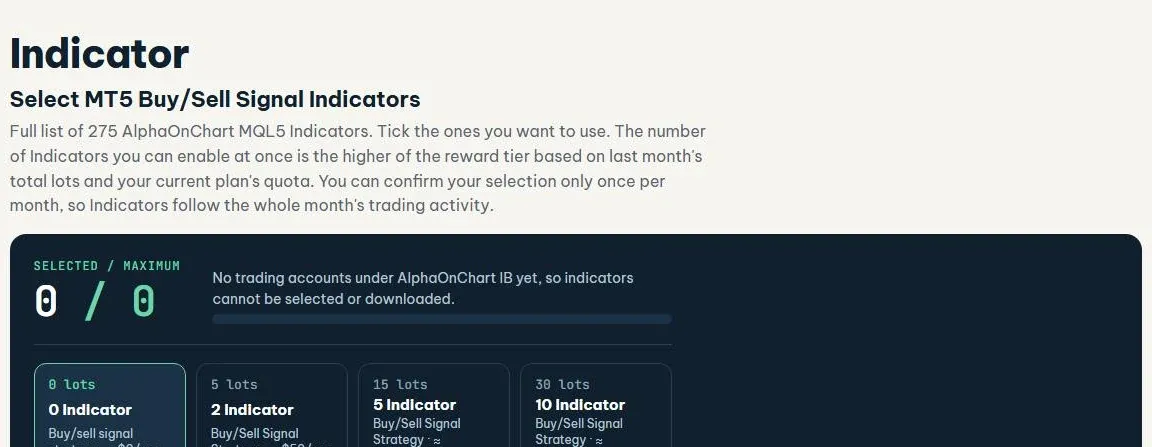
Open the Indicator tab and check your quota
In the member portal, open the “Indicator” tab. The “Selected / max” box shows how many Indicators you can enable at once. The quota follows last month’s total lots on your verified accounts or your current plan, whichever is higher. If the quota is 0 or the page says there is no account under the IB yet, check your account in the “Trading accounts” tab.
 Open Indicator →
- 02
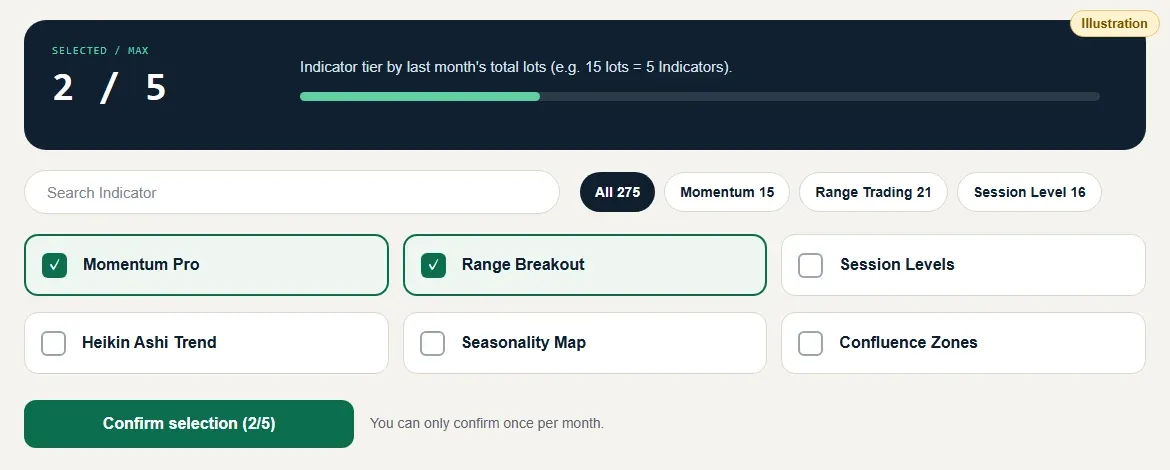
Tick your Indicators and confirm
Tick the Indicators you want to use (search by name or filter by group). Once you reach your quota, the system asks you to untick one before choosing another. Click “Confirm selection”: the selection is locked once per month so your Indicators match the whole month of trading activity.
- 03
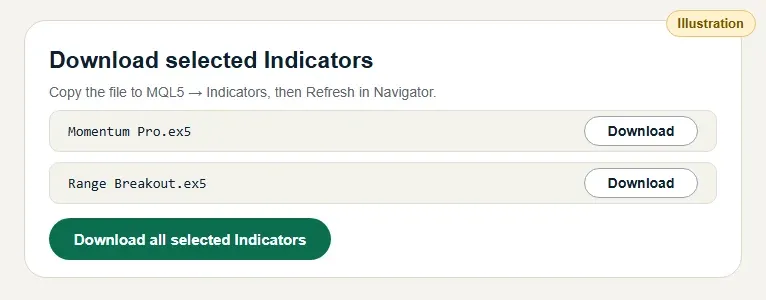
Download Selected Indicators
Click “Download selected Indicators” (or “Download all selected Indicators”) to save the files to your computer. Once you have entered your key in AlphaLicenseBridge, the Indicators unlock immediately.
- 04
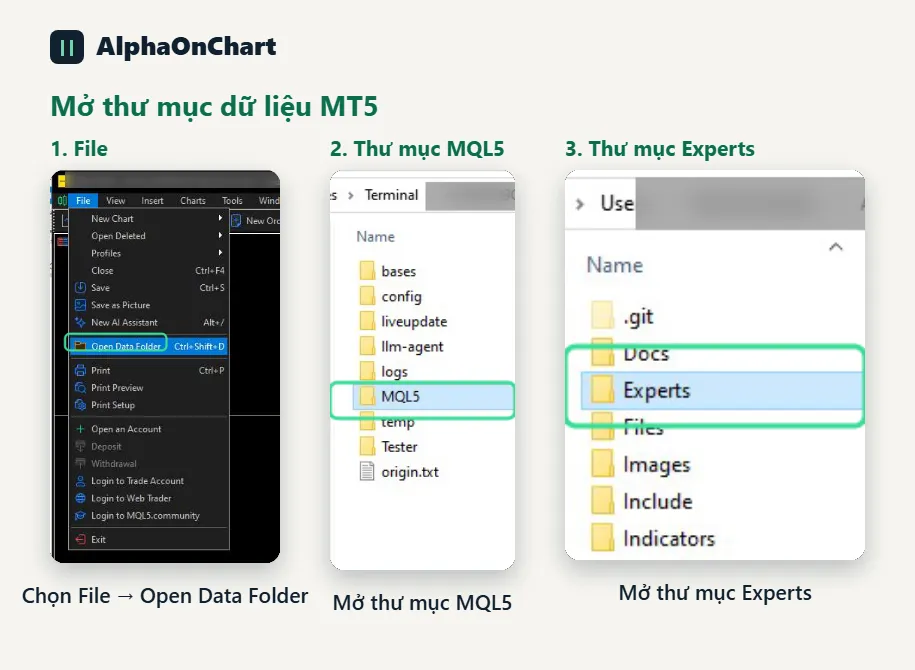
Open the MT5 data folder
In MT5, choose File → Open Data Folder, go to MQL5 → Indicators (or Experts for EAs) and copy the file in.
- 05
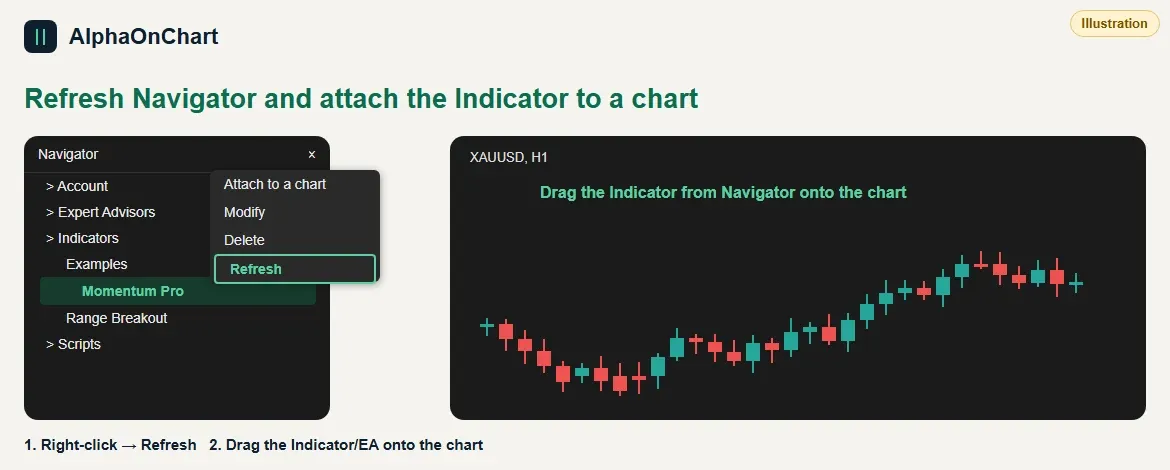
Refresh and attach to the chart
Restart MT5 or press Refresh in the Navigator, then drag the Indicator/EA onto the chart.
- 06
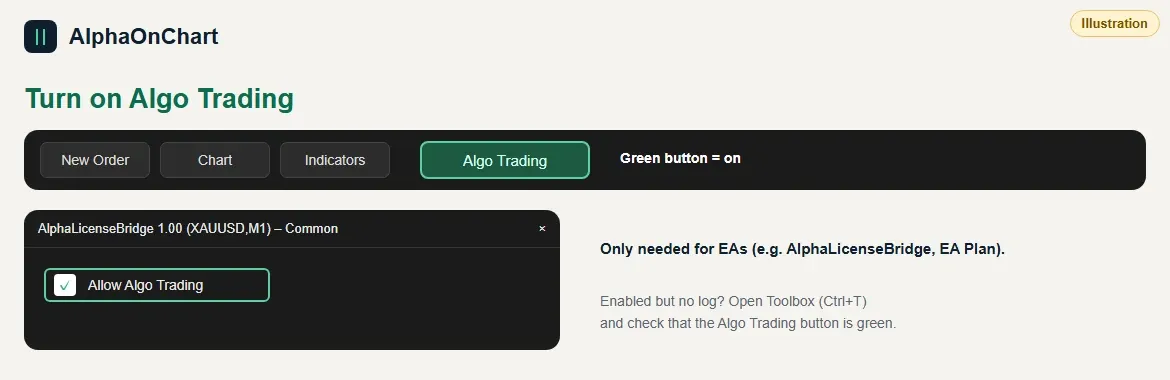
Allow automated trading (for EAs)
Turn on the Algo Trading button on the toolbar and tick “Allow Algo Trading” in the EA settings.