Add an account and activate your benefits in the member portal
How to add your trading account ID in the member portal, read the IB, KYC and first-trade check results, then get the key to enter into the EA.
- 01
Log in and open Trading Accounts
You need to have registered an AlphaOnChart Member account and opened or switched your broker account to our IB following the broker guide. Sign in to the member portal, open the “Trading accounts” tab and scroll to the “Activate trading account” card. Only Live (real-money) accounts are accepted; Demo accounts are rejected.
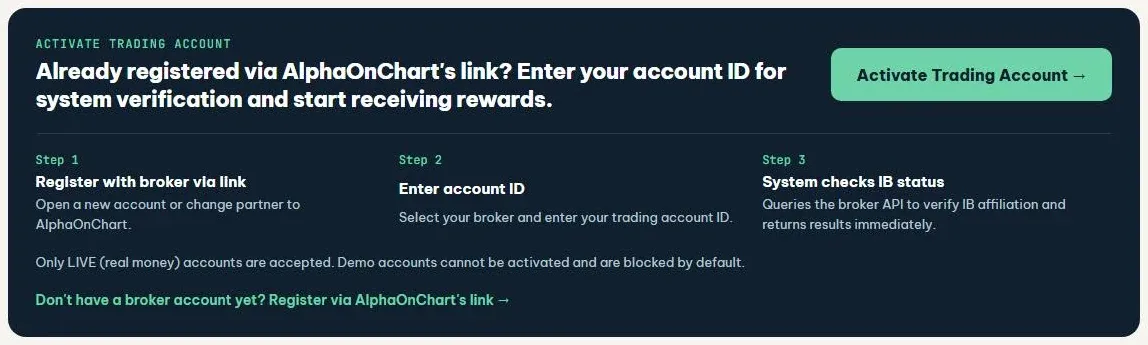 Open Trading Accounts →
- 02
Click Activate trading account
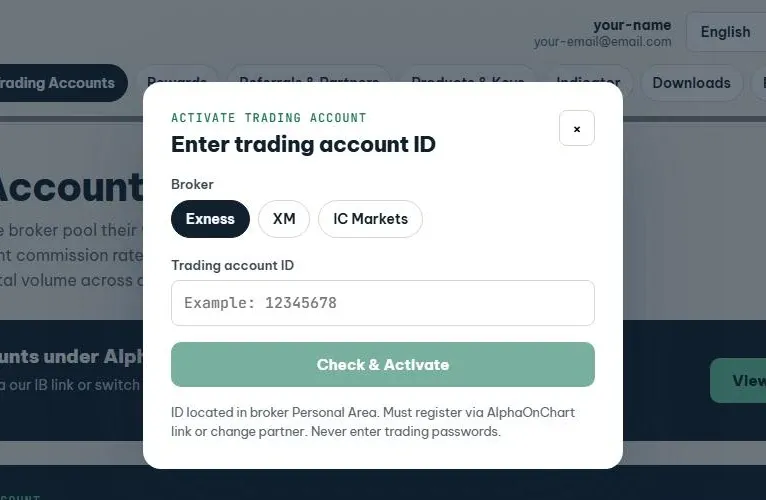
Click “Activate trading account →” (or “Add account” on the first step of the Overview). The “Enter your trading account ID” box opens: pick the broker you used (Exness or XM). You only need the ID; never enter a trading password.
- 03
Enter the ID and click Check and activate
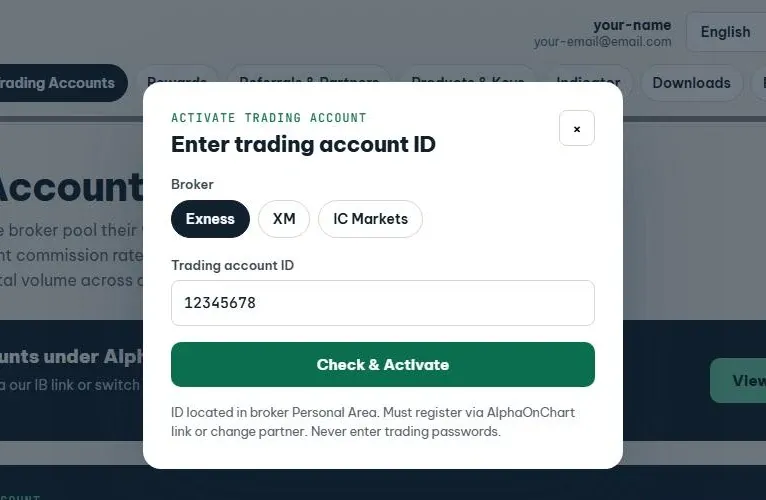
Enter your trading account ID, the number you use to sign in to MT5 and see in the broker’s Personal Area, then click “Check and activate”. The system asks the broker and returns the result within seconds.
- 04
Read the check result
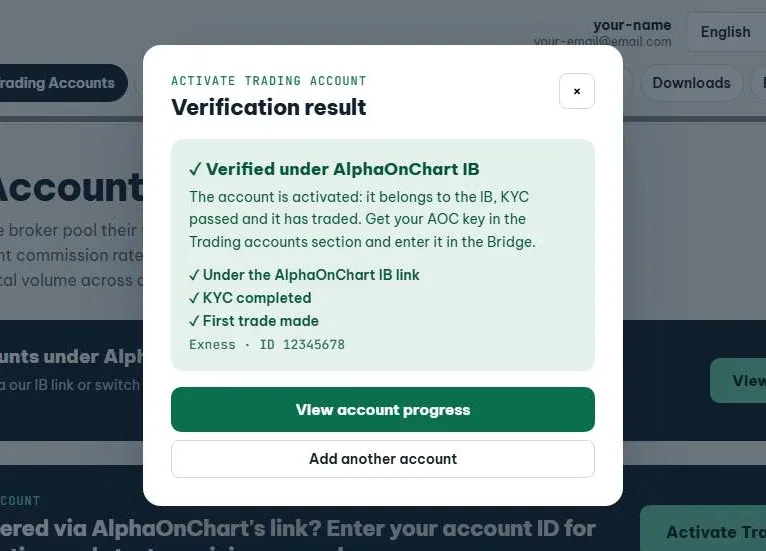
The system checks three conditions in order, and a step only appears once the previous one passes: the account belongs to the AlphaOnChart IB link, KYC is complete, and a first trade has been made. When all three pass, the box shows “Verified under the AlphaOnChart IB” and the account is activated. Click “View account progress” to open the account card.
- 05
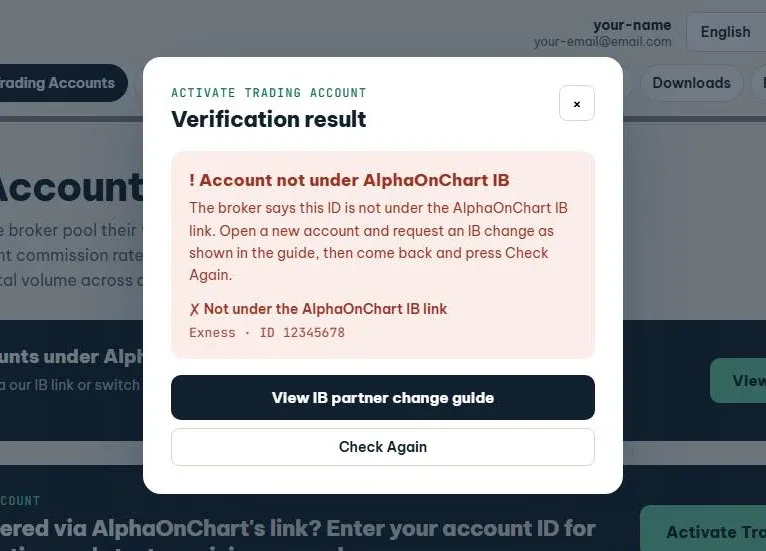
If it says not under our IB, fix it and Check again
The box says “Account is not under the AlphaOnChart IB”: open a new account or request the IB switch following the broker guide, then click “Check again”. If KYC or the first trade is still missing, complete it and click “Check again” on the account card. The system also re-checks every 15 minutes.
- 06
Get your AOC key and download the Bridge
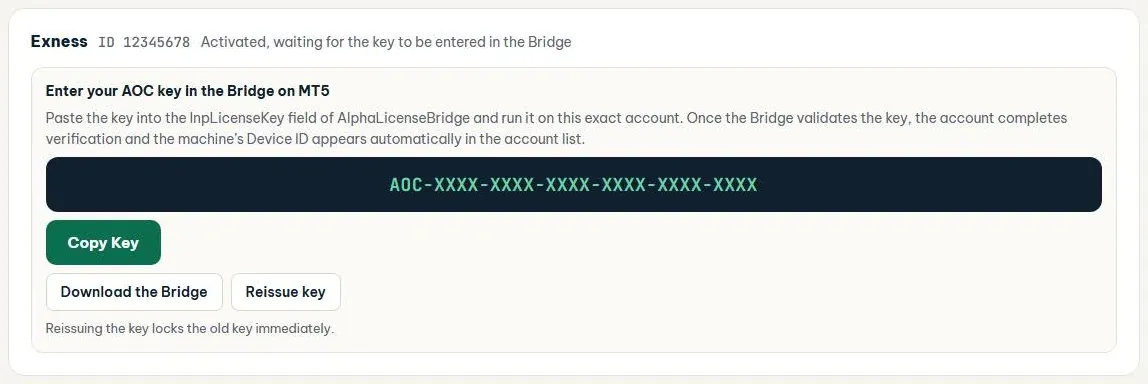
Once all conditions pass, the account card shows “Enter the AOC key into the Bridge on MT5” with a key like AOC-XXXX-XXXX-XXXX-XXXX-XXXX-XXXX. Click “Copy key”, then “Download Bridge” to get the AlphaLicenseBridge EA. If you think the key leaked or want a new one, click “Reissue key” (the old key stops working immediately). Next step: paste the key into the Bridge on MT5.
 Read the guide to entering the key in the EA
- 07
See the account in the Trading Account List
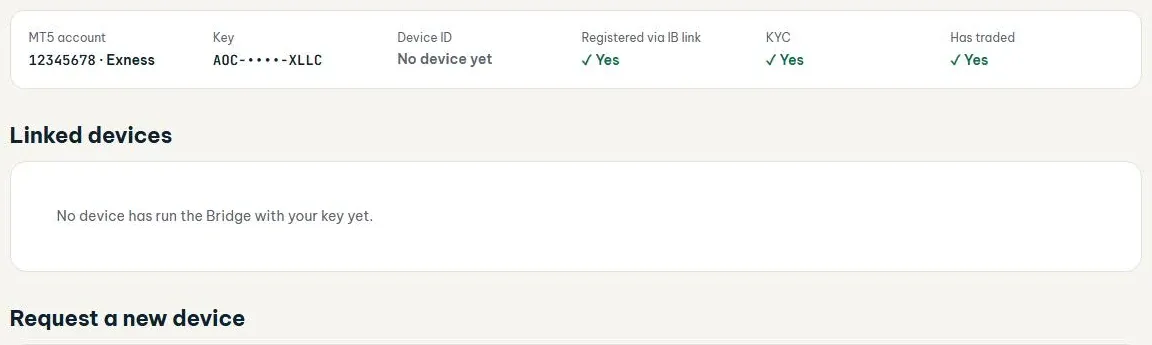
Click “Open account list →” to see each MT5 account with its key, the Device ID of the machine running the Bridge and three checks: IB link registered, KYC, Has traded. Each customer can use a limited number of machines across all keys; to add more, click “Register new device”.
- 08
Need help
Telegram @alphaonchart is still the Q&A channel. If the check returns no result, or you completed KYC but it was not recorded, click “Create support request” in the Support tab of the portal and we will review your file.
 Contact us on Telegram