How to open an XM account through AlphaOnChart: 6 steps, about 15 minutes
A guide to registering, verifying and making your first deposit on XM. Sign up through the AlphaOnChart partner link to get 100% of the IB commission refunded, plus daily XAUUSD analysis, the signal group and exclusive Indicators/EAs.
- 01
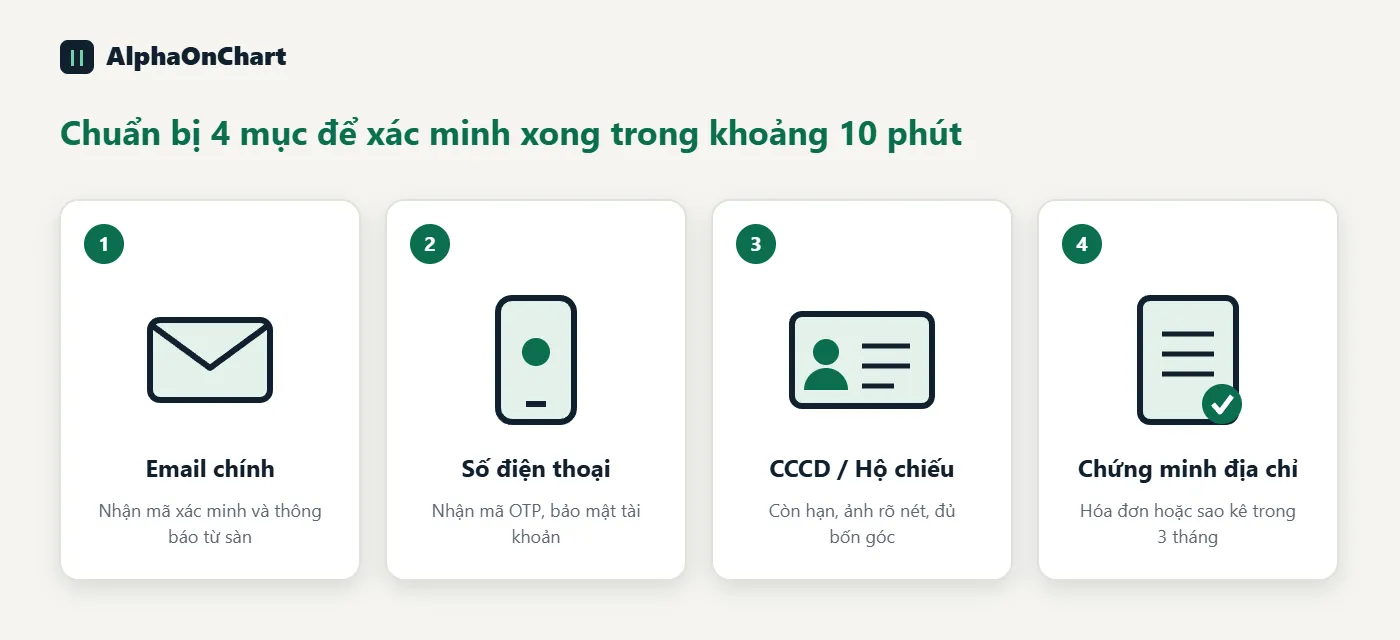
Get ready before you register
You need: • A valid national ID card or passport • Proof of residential address (an electricity or water bill, or a bank statement from the last 3 months) • An email address and phone number you use regularly • The account type you plan to open (see step 5) Why prepare: XM is a licensed broker, so identity verification (KYC) is mandatory to confirm the rightful account owner and prevent money laundering. The name on your documents must match your registration exactly, and sharp photos are approved quickly, usually within 24 hours.
- 02
Open the sign-up page using the AlphaOnChart link
Click the button below to open the correct XM sign-up page from AlphaOnChart. You must register through this link before creating an account: it is the condition for your account to receive 100% of the IB commission back. If you registered through the wrong link, see the guide “Switch your IB to AlphaOnChart on XM”.
Open an XM account and get 100% commission back → - 03
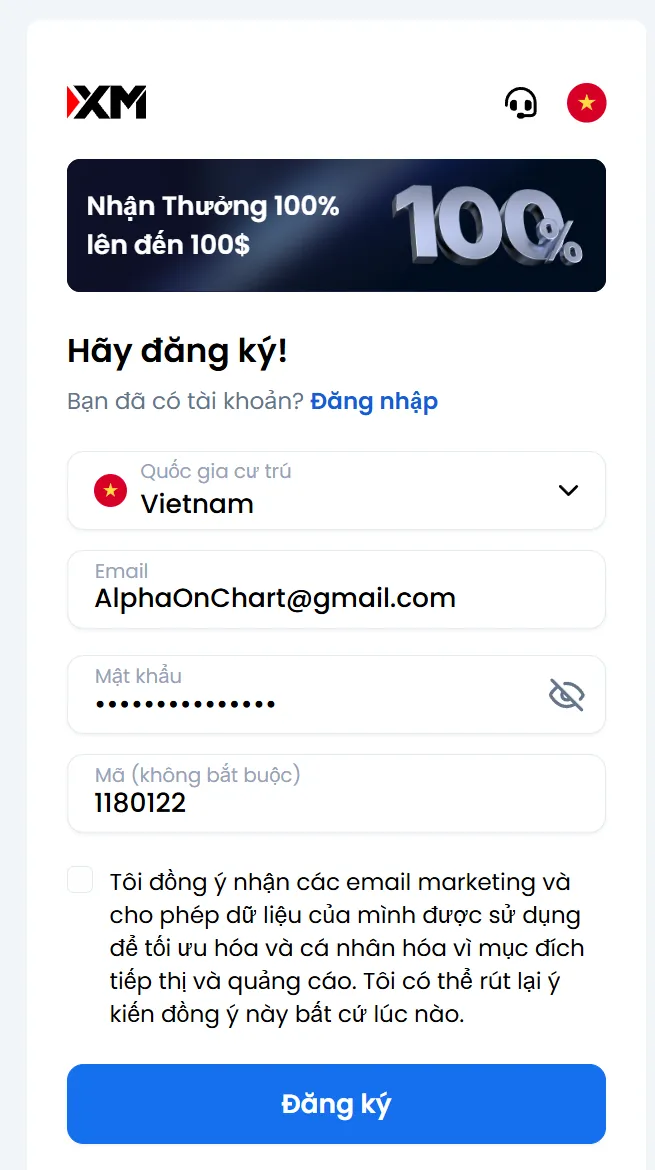
Enter your initial details: email, password, partner code
On the page that just opened, fill in: • Country of residence: Vietnam • Registration email (preferably your main one, usable long-term) • A password of 10–15 characters with upper-case and lower-case letters, numbers and a special character • AlphaOnChart's partner code: 1180122 (usually pre-filled when you open the right link, so check that it is not empty or edited) The box agreeing to marketing emails is optional. Click Register, then open your email to confirm. After that, download the XM app, choose your language and sign in to continue the verification steps.
- 04
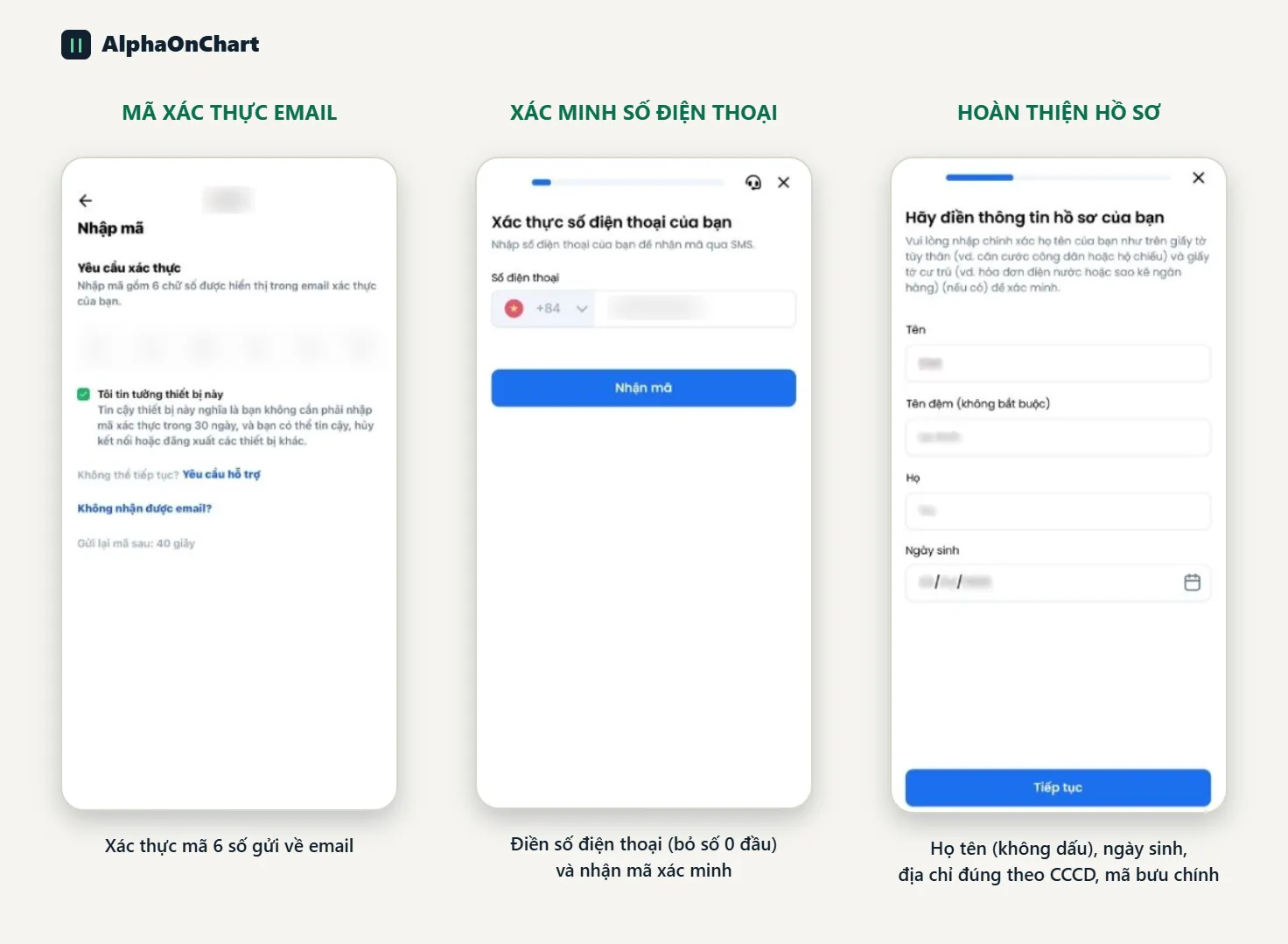
Verify your email, phone number and profile
1. Verify your email: enter the 6-digit code sent to your email. 2. Verify your phone number: enter your phone number (without the leading 0) and the verification code you receive. 3. Complete your profile: full name without diacritics, date of birth, address exactly as on your ID card, and postal code (look it up by province/city if you do not remember it).
- 05
Verify your identity with your ID card
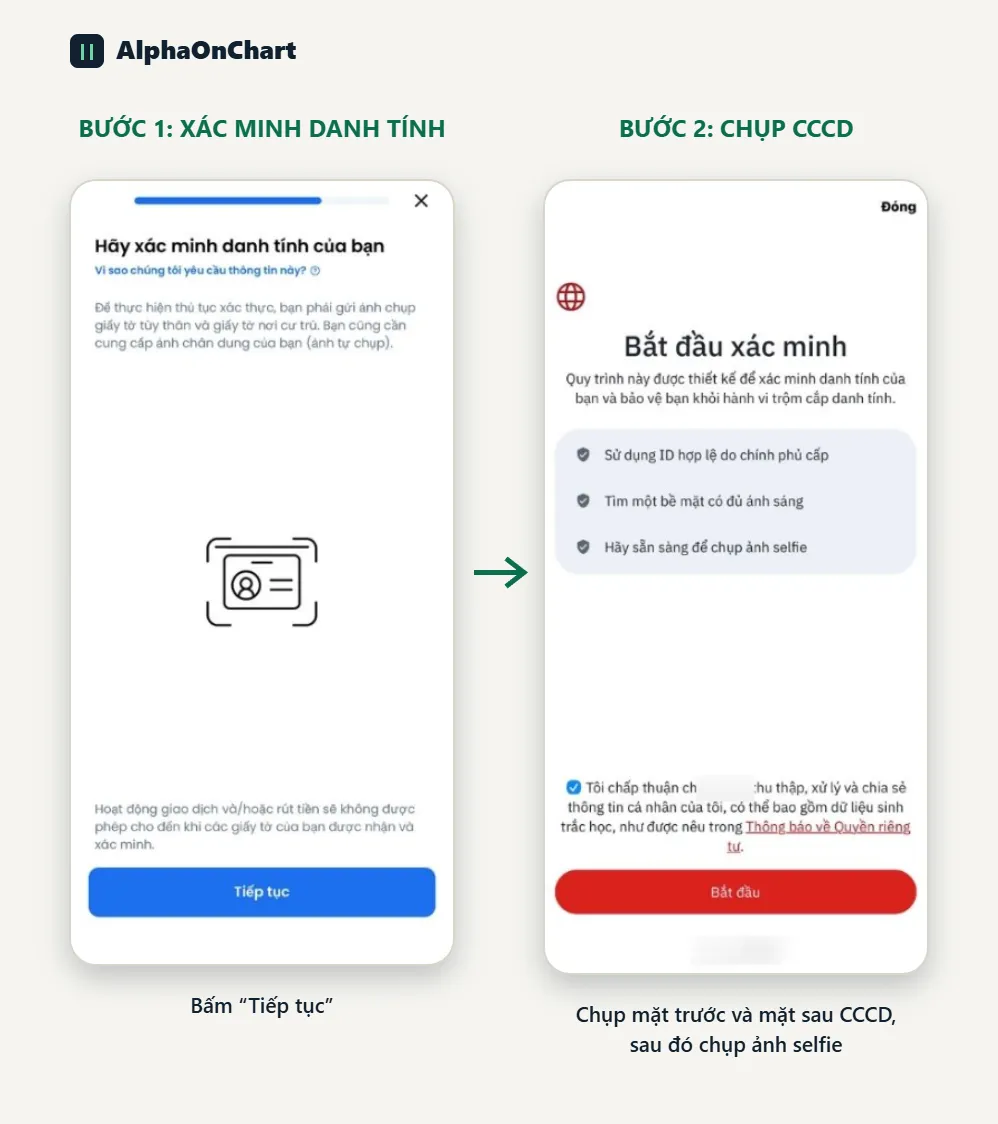
At the end of the verification flow, click “Continue” and “Start”, then photograph the front and back of your ID card (or passport) and take a selfie. • Place the document in good light, capture all four corners, with no glare or obstruction • The name on the document must match the name you entered exactly Trading and withdrawals are only enabled once your documents have been received and verified.
- 06
Create a trading account: choose Real and MT5
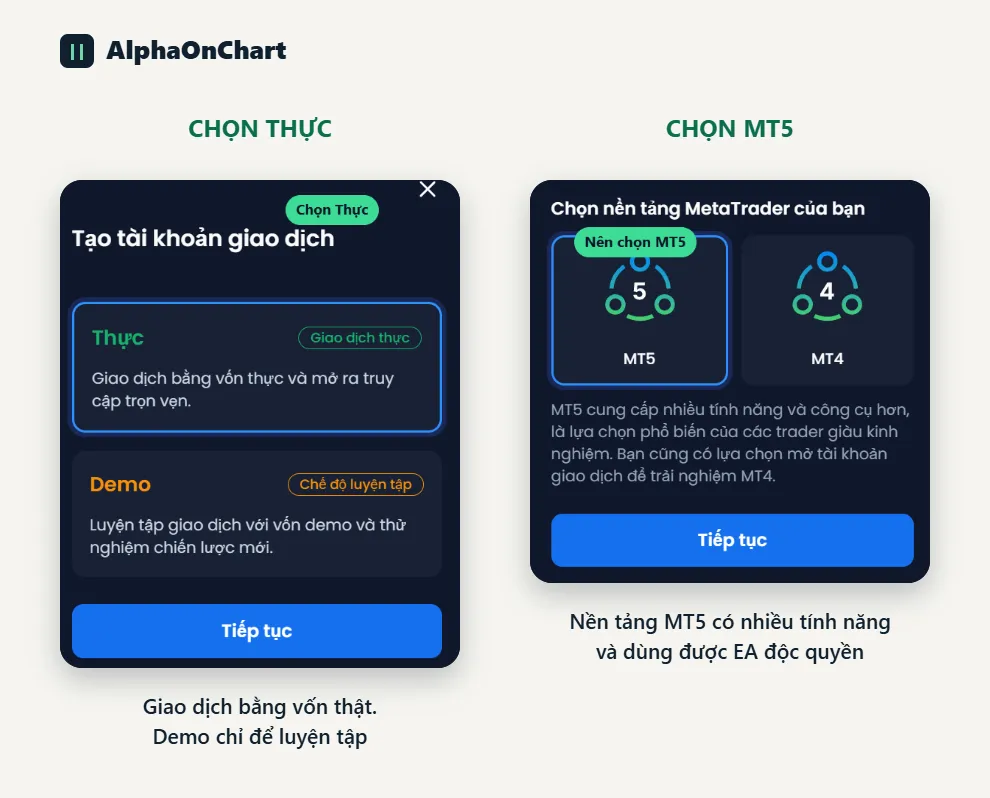
In the XM app, choose to create a new trading account: • Choose “Real” to trade with real money (Demo is for practice only and can be opened later) • Choose the MetaTrader platform: we recommend MT5, which has more features and works with AlphaOnChart's exclusive Indicators/EAs Click “Continue” after each screen.
- 07
Choose a suitable account type
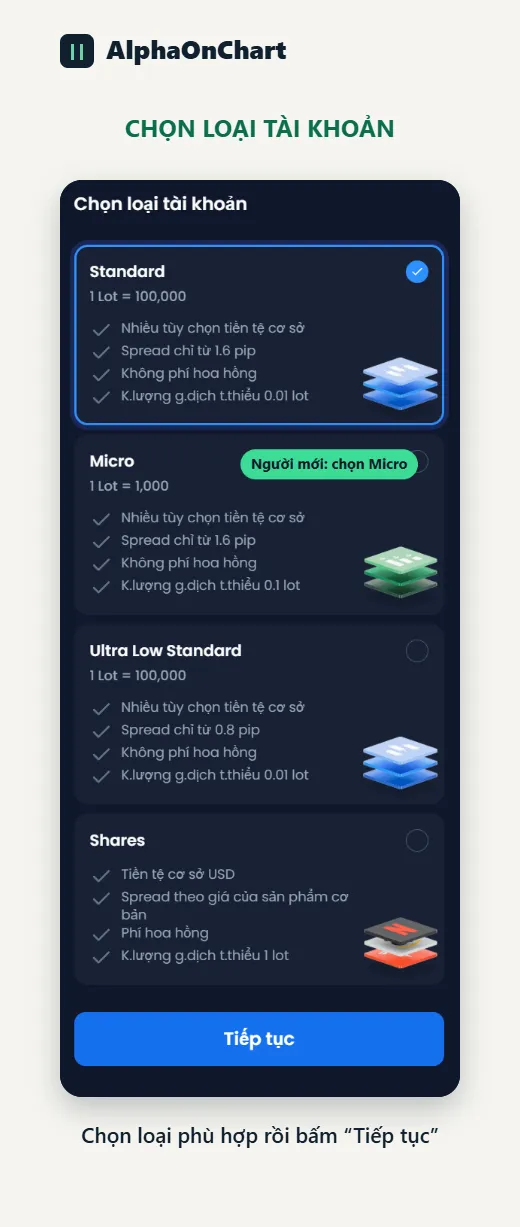
Answer 3 questions to choose: • Do you trade at high frequency (scalping, EAs) or long term (swing)? • Do you prefer no separate commission, or are you willing to accept a commission for a lower spread? • How much starting capital do you have? Account types at XM: • Standard: 1 lot = 100,000, spread from 1.6 pips, no commission, minimum volume 0.01 lot • Micro: 1 lot = 1,000, spread from 1.6 pips, no commission, minimum volume 0.1 lot. Suits beginners • Ultra Low Standard: 1 lot = 100,000, spread from 0.8 pips, no commission, minimum volume 0.01 lot • Shares: USD base currency, commission applies, minimum volume 1 lot Choose an account type and click “Continue”. Note: XM's Zero account is currently only available to clients registered under the CySEC (European) entity. Check your entity before choosing.
- 08
Customize the account and check the partner code
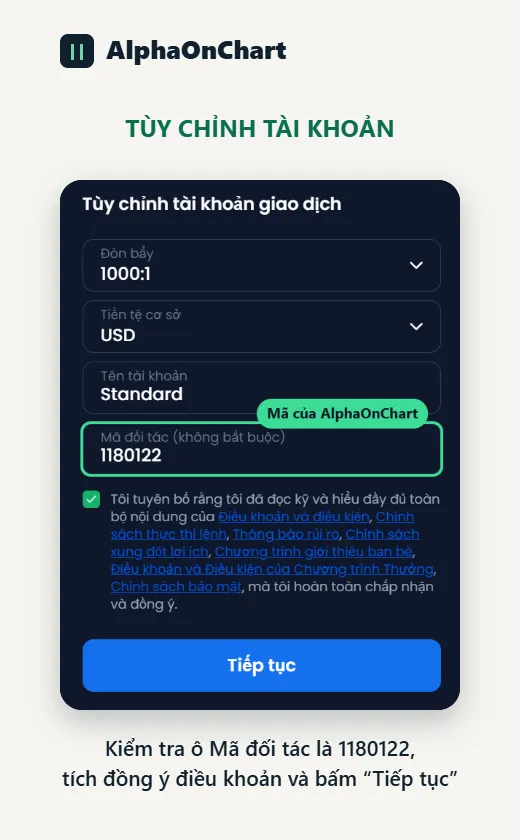
On the “Customize trading account” screen: • Leverage: choose a level that fits your risk appetite (1000:1 is the highest; beginners should choose lower) • Base currency: USD • Account name: leave the default or set a memorable name • Partner code: 1180122 (AlphaOnChart's code). This field is optional, so it is easy to leave empty; check it carefully because it is the condition for receiving 100% of the IB commission back Tick to accept the terms and click “Continue”.
- 09
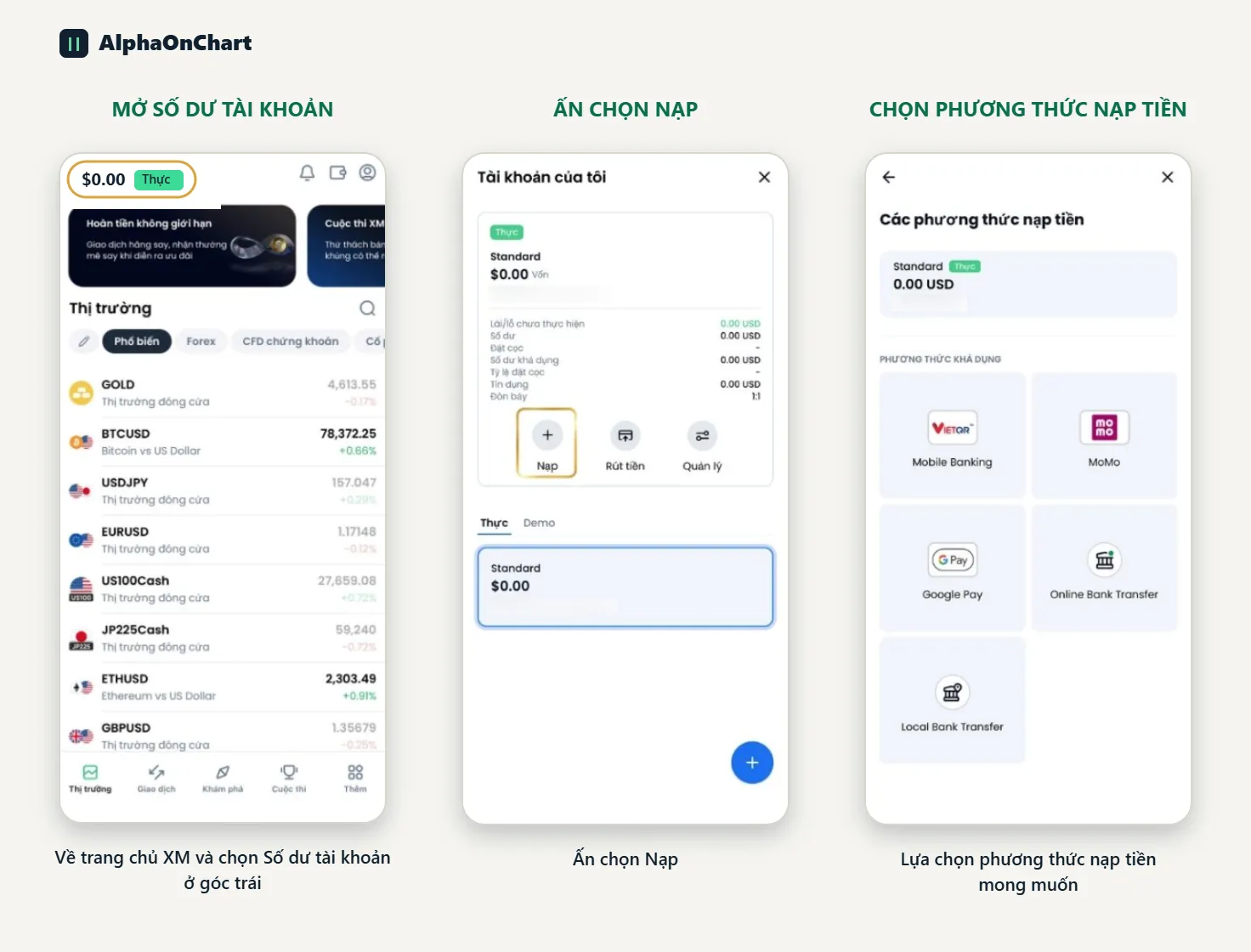
Deposit funds and send your account ID to AlphaOnChart
After verification is complete: go to the XM home page, choose Account balance in the left corner, tap Deposit and pick the deposit method you want (bank, MoMo, Google Pay...). Beginners should also open a demo account to get used to the platform and start with small capital. Then send your MT4/MT5 account ID via Telegram @alphaonchart to activate: • 100% IB commission refund • XAUUSD analysis updated twice a day • The signal group and community • Exclusive Indicators and EAs